

Guide
Welcome to OPARKO’s Guide!
This guide page gives you an introduction to the OPARKO platform and app when getting started with a parking solution from OPARKO
Get off to a good start with your parking solution
Guide to simplified parking management
Our app and platform offer a comprehensive solution for parking management and handling. It provides a user-friendly interface that makes it easy to manage all aspects of parking, from permits to fees. With OPARKO, you can manage users and their permissions, as well as customize the rules for permit handling.
Click on the buttons to the right to go to a specific guide.
APP
With the OPARKO app, you can manage everything related to permits and fees. Access can be granted to different features, ensuring that users only have access to what they need.

Permits
In the app you can create guest permits and manage permanent permits. This video shows how to create a guest permit
Edit Permits
To view or edit an existing permit follow these steps:
Click on “Permits”
1. Click “See permits”
2. Click on the permit you want to edit
3. Click “Edit permit”
4. Click on the license plate and enter the new one
5. Click “Save changes” to update the permit
If you wish to stop a permit before the end time, click “Stop permit”


Fines
The OPARKO app has multiple features for fine creation.
- Fine creation
- Observation time
This video show how to write a fine in the OPARKO app
Observation time
If observation time is required on the parking lot before a fine can be issued OPARKO app easily allows you to create multiple observations at a time.
Here is how it works:
Click “Fines”
- Enter the license plate and then click “Create fine
- Click “Start observation”
- Take a picture of the car with the license plate visible. Then click “Start observation”
- When the required observation time has passed you can find the fine again by clicking on “Observations” in the menu bar at the top. Choose the observation you want to create a fine with and click it
- Click “Create fine” and go through the steps of the fine creation. The picture you took at the start of the observation will automatically be the first picture in the documentation


OPARKO platform
With our all-in-one parking platform, you can easily manage all aspects of your parking solution from creating new users to managing multiple permits at once.

Permits
This guide shows how to create a new permit in the OPARKO Platform:
- Click “+ Create permit”
- Enter the license plate
- Choose a permit type
- Set the start and end date or mark it as a “permanent permit” if there should be no end date
- If you create the permit for another user you can attach the permit to them by entering their e-mail in the field “Created for user”
- Optionally, you can enter en e-mail to send a receipt for the permit
- Choose the parking lot(s) the permit should be valid for
- Optionally, write a note to the permit – External notes can be viewed by the parking wardens. This is used to write relevant information – like what spot number the permit is valid for
- Finish the creation of the permit by clicking “Create”

Edit permits
This guide shows how to edit or stop a permit in the OPARKO Platform.
Edit a permit:
- Search for the permit you want to edit
- Click to open the permit
- Make the changes – To update the license plate just overwrite with the new one
- Save your changes by clicking “Update” in the bottom right corner
To stop a permit before the end date, simply open up the permit and change the status to “Inactive” and press “Update” in the bottom right corner

User creation
This guide shows how to create a new user.
To get started click on “+ Create User”
- Enter Name, E-mail and Username – We recommend to use the e-mail as the username also
- Choose a start and end date. To give the user permanent access, click the box “Permanent user”
- Choose what parking lots the user should have access to
- In “User and permissions” tab, choose what the user should get access to
- Create the user by clicking “Create” in the bottom right corner
To edit an existing user, click on the user in the list view. Make your edits and save them by clicking “Update” in the bottom right corner.

Establishment
It is essential to understand and follow parking regulations. Upon entering the parking area, it is the driver’s responsibility to stay alert, but proper signage is also crucial.
Design of signs
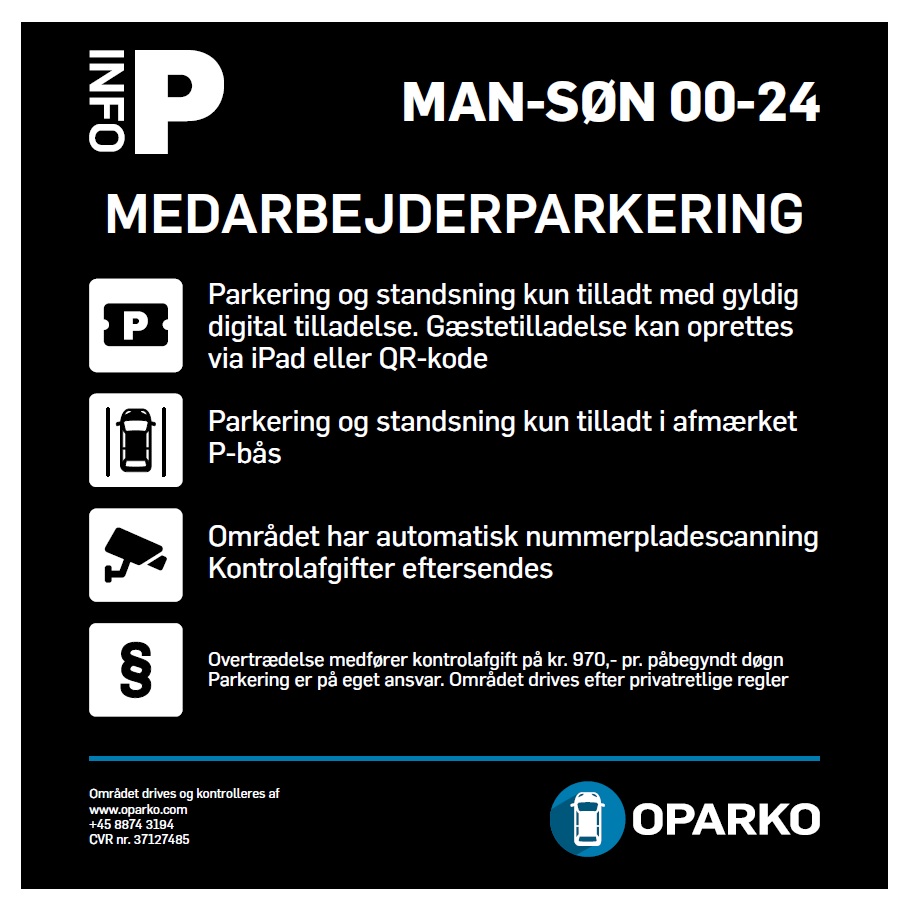
A parking sign for private parking lots can be designed in many ways. There are certain formal requirements that must be complied with, and the terms on the sign must be easy to read and clear to find. We do this with a centralized switch with the purpose of the parking, for example “Private parking” or “Paid parking”, followed by icons with associated conditions.
Welcome to OPARKO’s Guide!
This guide page gives you an insight into the ups and downs in relation to getting started with a parking solution with OPARKO.
Get off to a good start with your parking solution
Parking signs for the parking lot
A clearly visible entrance sign must be placed at the entry and exit points of the parking area. In addition, signs describing the terms and conditions of the parking area must be posted within the lot. These signs should be positioned so that they are easy to locate when parking in the area.